This section explains how to start the OptiShot program and the various screens you will see as OptiShot loads.
 HOW TO START OPTISHOT
The easiest way to start OptiShot is to double-click the OptiShot icon on your desktop.
However, you may also start the program via the Start Menu.
- Click Start » All Programs then scroll to and click on Dancin' Dogg Golf, then click on OptiShot
INITIAL SCREENS
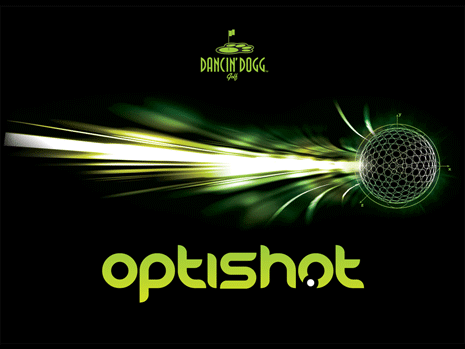
- The first thing you will see upon starting OptiShot will be the Splash Screen. This displays while OptiShot is loading. It should only appear for a few seconds.
- If, for some reason, your Swing Pad is not correctly connected the Optical Swing Pad - Not Connected window will pop up informing you of this and asking that you correct the situation.
- Finally, if any updates are available, you will be shown the Update Screen which will ask you whether or not you wish to download the updates.
For details on the Update process, see the Updates section.
Once these initial screens have displayed, OptiShot will open and you will be at the Main Menu window.
Comments
Article is closed for comments.