

Search for Answers/OptiShot Help & Support/OptiShot Software
Quick Start Guide

Jonathan B Cole
posted this on August 09, 2011 04:53 pm
On behalf of everyone at Dancin’ Dogg Golf, we would like to thank you for your purchase of the OptiShot Infrared Golf Simulator.
We pride ourselves on bringing you the best possible product and hope you find it as useful and enjoyable as we do.
To insure the best possible experience, please review the requirements and guidelines below.
- Space Needed
- Lighting Requirements
- Minimum System Requirements
- Package Contents
- Hardware Installation
- Software Installation
- Start, Register & Update
- Testing Functionality
 SPACE NEEDED
ALLOW FOR ENOUGH ROOM TO SWING YOUR LONGEST CLUBS COMFORTABLY.
A space with at least a 10 ft x 10 ft area and with at least 8½ ft ceilings is necessary to take full swings. Of course, these measurements depend upon your height, the steepness of your swing and the length of the club you wish to swing.
We suggest you take a few gentle practice swings in the area you hope to use to be sure it is suitable. If you find the space too confined, you may still have enough room for irons. To that end, OptiShot features the ability to play all of its courses from Par 3 tee boxes.
LIGHTING REQUIREMENTS
ACCURACY DEPENDS ON PROPER LIGHTING.
AVOID SUNLIGHT AND ALL OTHER SOURCES OF INFRARED LIGHT.
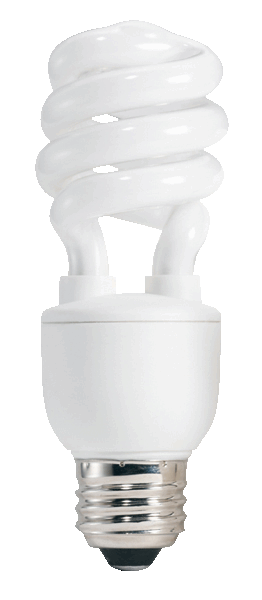
Because OptiShot uses infrared sensors to provide key shot data and swing analysis, it should only be used indoors as the light from the sun causes inaccurate results.
Below are some lighting guidelines.
- OptiShot works best when used in a room with fluorescent lighting.
- Warehouse lighting such as Sodium Vapor or Metal Halide also work very well.
- Overhead light is generally better than light from the side of the room.
- Avoid Incandescent, halogen, and daylight as even small indirect amounts will affect performance.
- Shadows from objects such as the club shaft and that of the golfer also may affect performance.
MINIMUM SYSTEM REQUIREMENTS
- Windows® XP, Windows® Vista or Windows® 7
- Graphics Card: 256MB Adapter RAM and OpenGL 2.0 Support
- 3GB Hard Disk Drive Storage
- 2GB RAM
- USB 2.0 port
- DVD Drive or Internet connection for software installation
PACKAGE CONTENTS
- Swing Pad with Turf
- 10ft USB Cable
- Installation DVD
- Gripper Tee
- Foam Golf Balls
- Practice Tees
- Product Key
Depending on where and when OptiShot was purchased, the Product Key may be found in one or more of the locations below.
- Printed on the setup instructions paper found inside of the DVD case
- Printed on a sticker adhered to the CD sleeve
- Printed on a sticker adhered to the underside of the Swing Pad
- Displayed in the bottom right hand corner of the Main Menu screen of your previously installed and registered software
OPTISHOT PRODUCT KEY EXAMPLES
OPT6-0123-4567-89AB-CDEF
OPR6-0123-4567-89AB-CDEF
OPTISTIX - THE ULTIMATE DRIVER FOR OPTISHOT - SOLD SEPARATELYSome drivers do not always work well with OptiShot because of the intricate design on their underside. We have found that drivers with a smooth and reflective bottom will yield more accurate results with OptiShot than those with an irregular and non reflective bottom. Enter the OptiStix, the only driver specifically designed and tested for use with OptiShot. |
HARDWARE INSTALLATION
PLUG IN USB CABLE ENDS - PLACE SWING PAD IN SUITABLE LOCATION
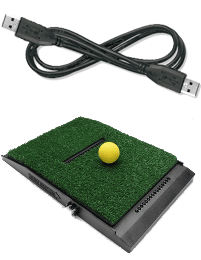
- Unpack all components.
- Plug one end of the 10 ft USB cable into the computer and the other end into the Swing Pad.
- Place the Swing Pad where you intend to hit and insure the arrow on the side of the Swing Pad points in the proper direction.
- Be careful of the placement of the USB cable to ensure that it does not become a tripping hazard!
SOFTWARE INSTALLATION
If you are installing from a disk, place the DVD in the drive and follow the onscreen instructions.
If the DVD fails to start automatically, browse to the contents of the disk and run OptishotSetupRunFirst
If you are downloading the software over the internet, go to the OptiShot Software page and follow the instructions there.
The first thing that will appear is the Installation Guide. This will take you through several screens of important information about OptiShot. Read each page carefully before clicking Next.
Once you are through the Installation Guide, the OptiShot Setup window will appear. Follow the instructions and OptiShot will be installed on your computer.
Note: The progress bar may seem to freeze at around 80% completion.
This is because we are copying the golf course files to your computer. Be patient while these load.
Once this is complete you will be asked to click the Finish button. OptiShot is now installed on your computer and you may remove the disk from the drive.
START, REGISTER & UPDATE
REGISTRATION IS MANDATORY TO RECEIVE UPDATES OR TO INSTALL PREMIUM COURSES.
- Start OptiShot by clicking the OptiShot icon on the Desktop or by clicking Start » All Programs » Dancin' Dogg Golf » OptiShot » OptiShot.
- On the User Account Control warning window choose Allow.
- On the Product Key window enter the Product Key and click Next.
If a message window opens to inform you that the entered product key is invalid then the key was entered incorrectly. Common mistakes include entering the letter “O” instead of the number zero “0”, or the letter “S” instead of 5 or “G” instead of 6. - Click the Yes, please register me now button. If the computer is not connected to the Internet you will be asked register by going to the web address below using some other computer or smart phone that is connected to the Internet.
http://registration.dancindogg.org/registrations/new - Fill out the displayed form with information as much as possible.
- Click the Register button.
- On the Registration Summary page click the Close button.
- Read the important message about lighting and drivers and then click the OK button.
- If the computer is connected to the Internet and there are updates available, you will be prompted to update. Click the Update OptiShot button. When the Updater is finished, click the Close button.
TESTING FUNCTIONALITY BEFORE USE
MAKE SURE EVERYTHING IS PROPERLY SET UP AND FUNCTIONING BEFORE YOU INVITE THE NEIGHBORHOOD OVER!
- Start OptiShot by clicking the OptiShot icon on the Desktop or by clicking Start » All Programs » Dancin' Dogg Golf » OptiShot » OptiShot.
- On the User Account Control warning window choose Allow.
- From the Main Menu choose Practice.
- In the Practice Location box choose Driving Range.
- In the Player Setup box click the Player drop down box arrow then click Create New User.
- In the New User dialog window enter your information, make your choices, and the click the OK button to go back to the Practice Setup screen.
- Click the OK button to go to the Driving Range.
- Read the Practice Tips and click the Close button.
- Click the arrows around the defaulted club until 6 Iron is selected.
- Remove the tee if it still inserted into the tee gripper. Please note that all shots are taken from this location with or without a tee inserted into the gripper.
- Grab an actual 6 Iron with highly reflective properties.
- Take three to four quarter swings (no ball required) with the face of the club open.
- Observe the shot data each time. Does the data show face open results?
- Take three to four quarter swings (no ball required) with the face of the club closed.
- Observe the shot data each time. Does the data show face closed results?
If you answered “YES” then the lighting conditions are optimal for OptiShot to return accurate swing results. If you answered “NO” then review the Space & Lighting section, make the necessary adjustments to the environment and test again.
If the lighting environment is properly set up and you are still answering “NO”, then turn off or at least dim all lights in the room and observe the infrared sensors. With the exception of the Green/Red status light, the other bulbs should alternate between being dark and glowing faintly red for a total of 8 lit per bank. If some are out that should be lit, then the Swing Pad should be replaced. Please click HERE to Submit a Request.
NOTE: The Swing Pad is powered by the computer through the connected USB cable. When properly connected to the computer's USB 2.0 port, power is sent to the Swing Pad after the OptiShot software starts. As soon as the Main Menu is open, the single green Device Connected/Hit When Ready light will illuminate. If the green Device Connected/Hit When Ready light is not lit then insure the USB cable is firmly and fully inserted into both the USB 2.0 port on the computer and the USB port on the Swing Pad.
| Face Closed | Face Open |
